The default group is Research Fields. The default filter is no filter; if you select a filter without specifying a filter value is the equivalent of applying no filter. The default papers selection is Top Papers.
Selecting different results lists, filter values, and include results for criteria changes the indicators displayed in the table. For example, if the following criteria are selected:
- Results List: Institutions
- Filter Results By: Research Fields
- Filter Value(s): Mathematics, Physics
- Include Results For: Highly Cited Papers
The indicators table will reveal the number of:
- Web of Science documents in Mathematics and Physics from each institution in the current 10-year period
- cites to documents in Mathematics and Physics from each institution and the cites/paper ratio for each institution
- highly cited papers in Mathematics and Physics from each institution
- cites to those highly cited papers and the cites/highly cited paper ratio
Results List
Selecting Results List determines the entities in column 2. If you don't apply a filter, results for all entities from 10 years of Web of Science return. The indicator values given in each row are the values for the corresponding entity. Ranking is competitive rather than ordinal.
For example, if Authors is the group and you apply no filters, the following row reveals an author named Reich, RB has 140 Web of Science documents. This author is ranked seven by total citations:
| Total | Authors | Web of Science Documents | Cites | Cites/Paper | Top Papers |
|---|---|---|---|---|---|
| 7 | Reich, RB | 140 | 6504 | 46.46 |
Filters and Filter Values
By applying a filter, you can reduce the number of entities and recalculate the indicator values to generate targeted or more precise indicator reports.
For example, the following criteria limit a report grouped by author to papers in Engineering.
- Results List: Authors
- Filter Results By: Research Fields
- Filter Value(s): Engineering
- Include Results For: Top Papers
The author Chen, Y has 1,103 papers in Engineering and is ranked 13:
| Authors | Web of Science Documents | Cites | Cites/Paper | Top Papers | |
|---|---|---|---|---|---|
| 13 | Chen, Y | 1103 | 6686 | 6.06 |  |
Applying a Filter
To apply a filter, you need to:
- Select the filter from the Filter Results By drop-down list.
- Select one or more filter values.
The method of entering filter values depends on the type of filter you select. For Research Fields, click inside the Filter Value(s) box, and then select one or more research fields from the list.
For other types of filters, begin typing inside the Filter Value(s) box, and select the value from the pop-up list. For example, to enter an author name as a filter value, begin typing the first few letters of the author's last name. Then select the desired name from the list. You can search for specific values using quotation marks to help reduce the number of results returned. This is helpful when searching for journals and authors.
You can only apply one filter of any type at one time.
Selections can be saved at any time by clicking Save Criteria and then assigning a name in the pop-up that appears. Once you've clicked Save the filter criteria can be accessed in My Custom Reports.
Customize
Additional indicators can be added by clicking Customize:
- Cites to Top Papers is the aggregate number of citations received by the top papers.
- Cites/Top Paper is the quotient obtained by dividing Cites to Top Papers by Top Papers.
The options in Customize change based on your paper type selection. Custom thresholds can also be applied to to filter results based on number of papers, citations and citations per paper. More than one custom threshold can be applied in a single instance.
All Fields Data
When filtering research fields by an entity, All Fields data displays at the bottom of the results list. This includes data from ranked and unranked fields, which gives you with the most complete data from the product.
Search by Name
Searching by name in Essential Science Indicators is governed by the following criteria to enable faster retrieval of precise results:
- Enter a name as Surname, Initials (comma required).
- Matching names will appear in the drop-down for selection.
- Omit apostrophes: O'Brien = OBrien.
- Hyphens are permitted: Aguila-Benitez
- Compound last names require the use of spaces: Van Horn
As some names are common, users are recommended to input full name information to most accurately retrieve results for that individual. For example, when searching for John F Smith, input Smith, JF.
Name Conflation
Authors having the same last name and initials may represent multiple individuals. This is especially likely in the case of common surnames. The ability to break the name by field may to some degree disambiguate person X in field Y from person X in field Z; however, keep in mind that a listed name can still represent more than one author within the same field.
Name Variations and Variations in Initials
Individual authors may appear with or without middle initials, in which case two entries may need to be consulted. This is also true for authors who have changed their names, for example, from maiden to married names, or authors whose last names appear in multiple ways.
Filter Results By
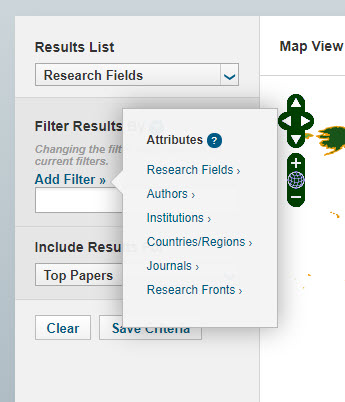
You can further refine fields on the results list by adding attributes selected from the list when you click Add filter.
- You can select attributes to the chosen field for the results list from the pop-up window.
- Search for specific values using quotation marks. This reduces the number of results returned, and it's helpful when searching for journals and authors.
Add Filter Attributes
Clicking Add Filter opens a window so you can select available attributes that correspond to the selected Results List for Indicators. You can select from a list or search for information for each attribute that appears. For example, if you've selected Authors from the Results List, you can choose to filter the results by searching for Authors or selecting from the available Research Fields. Additionally, you can access a sub-filter from the Results column (the 2nd column on the ranked list), and you can drill down further to find the exact entity you need.
Visible Filters
Once you have applied a filter to the Indicators page, your selections will remain visible until you choose to remove them or filter by a different filter field.